增加资源管理器页面
一、预览
资源管理器左侧导航栏包含以下功能入口:
- 文件管理器
- 文章大纲
- 微信、邮箱、腾讯会议、网络云盘等快捷应用
- 绘图工具
- Mermaid
- PlantUml
- Json编辑
- Yaml编辑
二、文件管理器
经常写文档的时候,是把所有的md文件放在一起,这样找起来也比较好找,这样就需要一个文件管理器来显示所有的文件。
当前的功能,是从用户指定的文件夹下进行显示,不支持全系统盘处理,那文件太多了。
目前支持显示 .md、.png、.jpg 等后缀的文件,其他类型的不在管理器中显示。
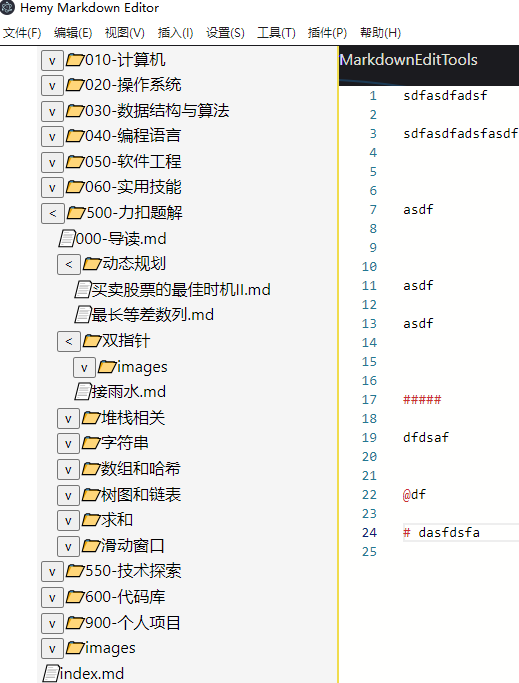
2.1 打开文件夹
利用electron的 dialog 和 fs.readdir,递归读取文件夹下的文件列表,只保留文件夹和 .md、.png、.jpg 后缀的文件属性。
通过 mainWindow.webContents.send('file-system-data', JSON.stringify(mdFiles)) 将信息传递给渲染进程。
就是我们的资源管理器vue组件。
递归读取文件夹Tree参考
| TypeScript |
|---|
| function shouOpenDirectoryDialog(mainWindow: Electron.BrowserWindow) {
dialog
.showOpenDialog(mainWindow, {
properties: ['openDirectory']
})
.then((result) => {
if (result.canceled) return
const dirPath = result.filePaths[0]
traverseDirectory(dirPath, (mdFiles) => {
// 发送文件名列表到渲染进程
mainWindow.webContents.send('file-system-data', JSON.stringify(mdFiles))
})
})
.catch((err) => {
console.error('Error opening directory dialog:', err)
})
}
// 递归读取目录中的文件,并构建目录树
function traverseDirectory(dir, callback) {
fs.readdir(dir, (err, files) => {
if (err) {
console.error(err)
return
}
const items = files.map((file) => {
const fullPath = path.join(dir, file)
return {
name: file,
path: fullPath,
isDirectory: false,
children: []
}
})
Promise.all(
items.map((item) => {
return new Promise((resolve, reject) => {
fs.lstat(item.path, (err, stats) => {
if (err) {
reject(err)
} else {
item.isDirectory = stats.isDirectory()
if (item.isDirectory) {
// 如果是目录,则递归调用
traverseDirectory(item.path, (subItems) => {
item.children = subItems
item.type = 'folder'
resolve(item)
})
} else if (
path.extname(item.name) === '.md' ||
path.extname(item.name) === '.png' ||
path.extname(item.name) === '.jpg'
) {
item.type = 'file'
resolve(item)
} else {
resolve(null)
}
}
})
})
})
)
.then((resolvedItems) => {
const filteredItems = resolvedItems.filter(Boolean)
callback(filteredItems)
})
.catch((err) => {
console.error(err)
})
})
}
|
2.2 资源管理器组件
ResourceManager.vue 组件包含文件树和文章大纲两个部分,通过 v-show 切换显示:
| Vue |
|---|
| <template>
<div v-show="showFileExplorer" id="resource-manager-component" class="resource-manager-component">
<div id="file-manager" class="file-manager">
<div id="file-tree">
<FileTreeNode
v-for="item in fileNodes"
:key="item.id"
v-model:is-expanded="item.isExpanded"
v-model:file-extension="item.fileExtension"
:is-indented="false"
:node="item"
/>
</div>
</div>
</div>
<div v-show="showMarkdownToc" id="markdown-toc-component" class="markdown-toc-component">
<div id="markdown-toc-heading">
<div v-for="item in tocArray" :id="item.id" :key="item.id" @click="scrollToSection(item)">
<span class="markdown-toc-title" v-html="getIndentedText(item)"></span>
</div>
</div>
</div>
</template>
|
在资源管理器组件中,监听主进程的消息,收到后给组件进行解析显示。这里用了子组件 FileTreeNode.vue,通过 v-show 进行显示的切换。
| TypeScript |
|---|
| window.electron.ipcRenderer.on('file-system-data', (_, fileTree: string) => {
try {
fileNodes.value = JSON.parse(fileTree) as FileSysItem[]
} catch (error) {
console.error('Error parsing file system data:', error)
}
})
function SwitchResourceManager(value: string) {
if (value == 'markdown-toc') {
showMarkdownToc.value = true
showFileExplorer.value = false
EventBus.$emit('monaco-editor-get-chapters', true)
} else if (value == 'file-explorer') {
showFileExplorer.value = true
showMarkdownToc.value = false
EventBus.$emit('monaco-editor-switch-explorer', true)
}
}
watch(() => props.naviShow, (value) => {
SwitchResourceManager(value)
})
|
2.3 FileTreeNode
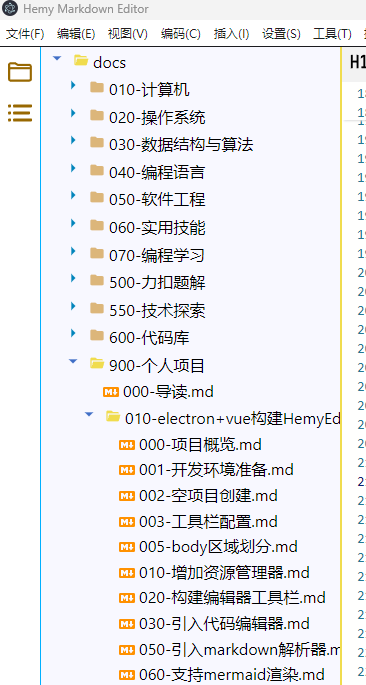
这里面就是递归显示处理了,并在文件操作上增加了点击事件和右键菜单。
递归显示文件树
| Vue |
|---|
| <template>
<div id="file-tree-node" class="file-tree-node" :class="{ indented: isIndented }">
<div id="node-content" class="node-content"
@click="handleClick(node)"
@contextmenu.prevent="onContextMenu($event, node)">
<!-- 文件夹:显示展开/收起按钮和文件夹图标 -->
<span v-if="node.type === 'folder'">
<button @click="toggleFolder">
<svg v-if="getSvg(isExpanded, 'collapse')" ...>
<path :d="getSvg(isExpanded, 'collapse').path" />
</svg>
</button>
<svg v-if="getSvg(isExpanded, 'folder')" ...>
<path :d="getSvg(isExpanded, 'folder').path" />
</svg>
</span>
<!-- 文件:显示文件图标 -->
<span v-else>
<svg v-if="fileExtension && getSvg(false, fileExtension)" ...>
<path :d="getSvg(false, fileExtension).path" />
</svg>
</span>
<span class="file-manager-node">{{ node.name }}</span>
</div>
<!-- 递归显示子节点 -->
<div v-if="node.type === 'folder' && isExpanded" id="file-subtree" class="file-subtree">
<FileTreeNode
v-for="child in node.children"
:key="child.id"
v-model:is-expanded="child.isExpanded"
:node="child"
:is-indented="true"
/>
</div>
</div>
</template>
|
2.4 右键菜单
文件树节点支持丰富的右键菜单功能,通过 IPC 通信由主进程处理:
| 功能 |
说明 |
| 新建文件 |
在当前目录下创建新文件 |
| 新建文件夹 |
在当前目录下创建新文件夹 |
| 重命名 |
重命名文件或文件夹 |
| 删除 |
删除文件或文件夹 |
| 复制 |
复制文件到剪贴板 |
| 剪切 |
剪切文件到剪贴板 |
| 粘贴 |
粘贴剪贴板中的文件 |
| 复制相对路径 |
复制文件相对于根目录的路径 |
| 复制文件链接 |
复制 Markdown 文件链接格式 |
| 复制图片链接 |
复制 Markdown 图片链接格式 |
| 在资源管理器中打开 |
调用系统资源管理器打开 |
| 从磁盘重新加载 |
重新从磁盘读取文件内容 |
打开文件处理:给主进程发送了一条消息,主进程收到后,读取文件内容,然后将内容发送给 monaco-editor 组件的渲染进程,然后显示在编辑器,同时通过 markdown-it 进行渲染,显示在预览区域。
三、文章大纲
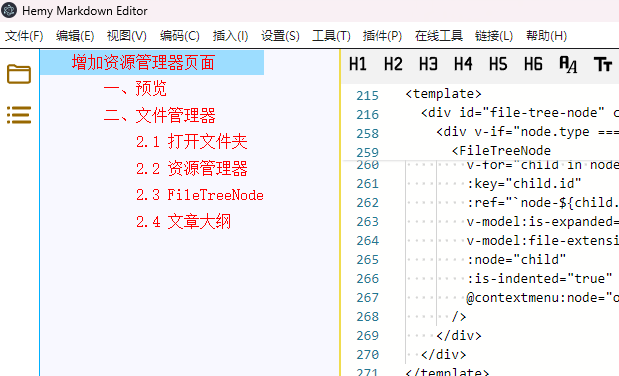
大纲的显示,直接从文章中获取对应的标题,通过内部的通信方式(EventBus),传递给资源管理器组件,然后进行显示。
| TypeScript |
|---|
| function getIndentedText(item: MarkdownTOC): string {
const levelStr = item.level.slice(1)
if (!levelStr) {
return item.text
}
// 返回带有缩进的文本
const levelNum = parseInt(levelStr, 10)
const indent = ' '.repeat(levelNum * 2)
return `${indent}${item.text}`
}
function scrollToSection(item: MarkdownTOC) {
EventBus.$emit('monaco-editor-locate-target-line', item)
}
onMounted(() => {
EventBus.$on('monaco-editor-chapters', (toc: MarkdownTOC[]) => {
tocArray.value = toc
})
})
onBeforeUnmount(() => {
EventBus.$off('monaco-editor-chapters', () => {})
})
|
大纲数据由编辑器组件解析 Markdown 标题生成,点击大纲项时通过 EventBus 通知编辑器跳转到对应行。
四、辅助按钮
为了方便日常的使用,这里在资源管理器左侧的导航列,增加了一些日常使用的应用快捷通道。
在 NaviTab.vue 中增加下拉按钮,按照如下方式增加快捷按钮:
| Vue |
|---|
| <button data-index="2" title="邮件" class="navi-tab-item outline" @click="onOpenEmailTool">
<svg viewBox="0 -0.5 1025 1025" class="icon" xmlns="http://www.w3.org/2000/svg">
<path d="..." fill="#5F6379" />
<path d="..." fill="#3688FF" />
</svg>
</button>
|
| TypeScript |
|---|
| function onOpenEmailTool() {
window.electron.ipcRenderer.send(
'navi-tab-open-exe',
'D:\\yeah.net\\MailMaster\\Application\\mailmaster.exe'
)
}
|
通过electron的API接口,发送消息到主进程,由主进程调用接口,启动应用:
| TypeScript |
|---|
| ipcMain.on('navi-tab-open-exe', async (_, exePath: string) => {
await shell.openPath(exePath)
})
|

这里增加了常用的邮件、浏览器、会议、微信、QQ、百度网盘、钉钉等应用,目前应用地址是写死的,后续可以考虑优化,改成可配置的。
最终的方案,期望做成通过配置按钮,配置应用的路径、应用图标、应用类型。也可以增加一些网站的快速链接。
五、文件状态管理
项目支持文件状态自动保存和恢复:
- 自动保存:定时保存当前打开的文件内容(默认30秒间隔)
- 状态恢复:应用重启后自动恢复上次打开的文件和目录
- 状态栏显示:实时显示文件保存状态(已保存/未保存)
- 最近打开:记录最近打开的文件和文件夹,在欢迎界面显示
文件状态管理相关代码在 src/main/utils/file-state.ts 中,通过 restoreLastOpenedFile 函数在应用启动时恢复状态。